Archive

Archive for the ‘Art 356 Print Production’ Category

Photoshelter has great info on SEO – read it!

June 9th, 2009 admin No comments

For those of you wanting to learn about Search Engine Optimization, aka SEO, Photoshelter, a great photo hosting service, has an SEO Cookbook with excellent information to learn how to get found on the net. Get the Photoshelter SEO Cookbook here. Download this information and read it.

Categories: Art 356 Print Production Tags:

Post to delicious

February 4th, 2009 admin No comments

You may know that I created an account for the Art 356 class on the delicious.com site. You can see lots of sites that are related to the class. Also, please post websites that you interesting for other classmates. To post to the art 356 account go to delicious.com/post and tag the site. Let me know if you forgot the login name or password.

Categories: Art 356 Print Production Tags:

Is your type format True, Open or ’script?

September 12th, 2008 admin No comments

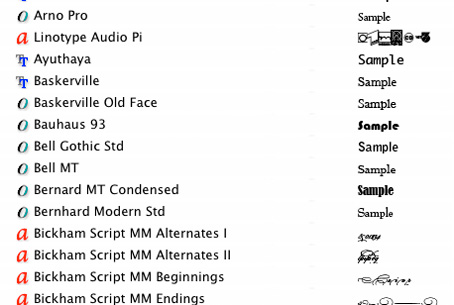
Font type icons


When you select a font in InDesign® from the font menu, check the icons to the left of the font’s name. The icon is there to let you know the type format. The O indicates OpenType fonts, the TT is for TrueType fonts and the red a is for PostScript fonts. Get to know the advantages of each format.

Where’s my Glyph? It was just here!

September 9th, 2008 admin No comments

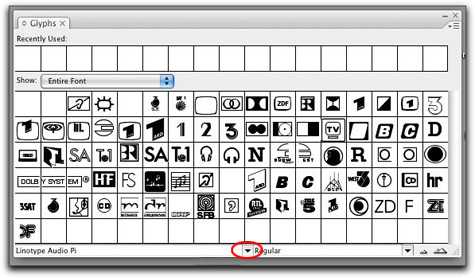
Menu from InDesign\'s Glyph keyboard mapOnce you explore all of the characters in your favorite type face or font, you may want to see what else is hidden in the keyboard map for the font. For example, how many times have you wondered were the © symbol is located, or where the ® symbol for registered product names? Better yet, you may have the need to check out the full keyboard map for a glyph or symbol font like Zapf Dingbats or Carta. Glyph fonts like these are  only a few of the available fonts to you in the lab. Alternative type characters or glyphs can be hard to find. Luckily inside of InDesign and Illustrator you can easily find a map of the keyboard layout. InDesign’s Glyph menu can be found by going to the top menu bar > find Window> scroll down to Type & Tables > then down to Glyphs. A window like the one above will appear. Select the font you want to see by clicking on the small arrow that is circled in red.

How to Make a Leather Journal

July 14th, 2008 admin 7 comments

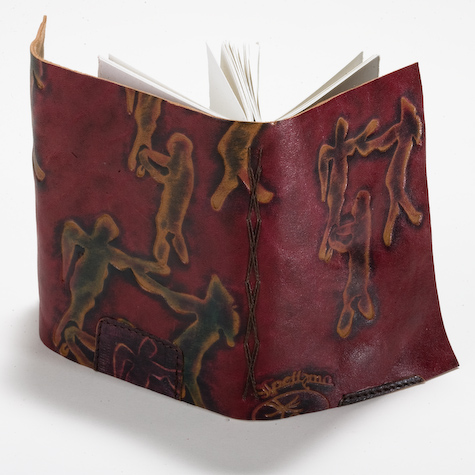
Danika Morphew-Tarbuck gave a demo to the class to teach us how to sew a leather wrapper around two signatures of drawing paper. Below is a photo of a sample that she created.

sample of finished journal

Danika used leather from a purse that she bought at a thrift store to use as the cover. Heavy weight drawing paper was used for the journal pages. She said sewing is easier if you use waxed linen thread. You will need two needles to sew this book.

Step by step photos can be seen by going to the Read more >. Read more…

Free trial of Adobe Lightroom v.2 Beta

April 15th, 2008 admin No comments

In class, we discussed using Adobe CS3 Automated Web gallery creator script in Photoshop and Bridge. As I mentioned, you can use many programs to automatically generate web galleries from your image files. In my next post, I will list other programs. A program that I have been using for over a year is Adobe Lightroom. By far, this is one of the fastest ways to generate web galleries. Last week Adobe release a free Beta version to Lightroom version 2. You can download a copy from this link. You will need to create an account and agree to license terms. Once you do, you will see a link for a copy of the beta for Macintosh and for Windows machines. You may not have interest in the digital photo processing procedures of Adobe Lightroom, but while the Beta version is operational, you will have some very attractive web templates, that can be created easily. Let me know if you have questions or problems with the download or install.
Categories: Art 356 Assignments, Art 356 Demos Tags:

Free training videos for Adobe CS3

March 10th, 2008 admin No comments

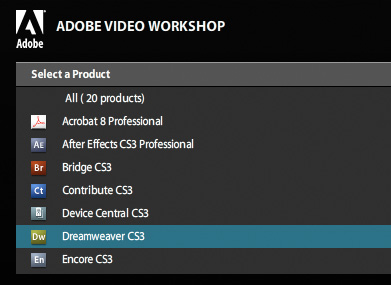
Adobe Video Workshop page

I was searching for an answer to a question for a problem in InDesign and I discovered free training videos on the Adobe site. Go to Adobe Video Workshop On the top of the left column is the a list of training videos called Adobe Video Workshop. Let me know if you have any questions.

Connecting to the class server

February 8th, 2008 admin No comments

connecting to server

Watch this video to learn how to connect to the class server from your Apple computer.

Mac OS Font Book

February 7th, 2008 admin No comments

Font Book sample

Are you familiar with the Font book application in the Mac OS? Go to your Applications folder > look for the Font Book application> and launch it.

The second column from the left is a list of all installed fonts on your computer. Scroll the mouse over to the font column and select one. You can see the full layout of the typeface. As you scroll down the list of fonts you will dixcover that some fonts are mostly symbols. As you work on your website and digital glossary, you might want to spend time scanning through the many font options that are on the computer. We have many more fonts on the server. I sent you a link to a tutorial showing how to log on to the class server and how to add fonts to your computer workstation. Check your email.

Dean gets an A’daBoy

February 7th, 2008 admin No comments

Your classmate Dean found this free FTP program. Say it with me – IT IS FREE – But it installs only on Firefox. Copy and paste this link using FIREFOX not Safari

https://addons.mozilla.org/en-US/firefox/addon/684

Then hit the INSTALL button It will install it in your FireFox brower. I will add a shot tutorial to configure it soon. That way it may be easier to add files to your web space.