How to set movable type
It is easy, just watch this very short animation. Set the type upside down or “wrong reading” Click here if you have trouble getting the video to play.
It is easy, just watch this very short animation. Set the type upside down or “wrong reading” Click here if you have trouble getting the video to play.
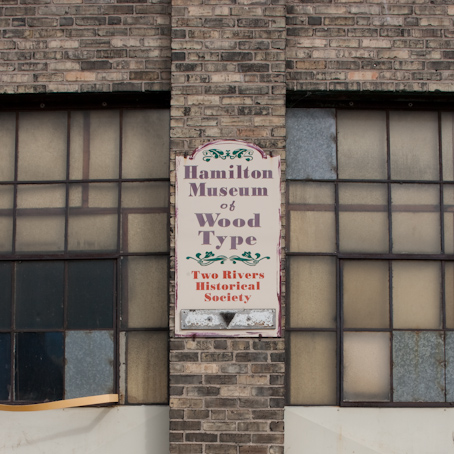
Two Rivers Wisconsin is home to the Hamilton Museum of Wood Type. This link will take you to a gallery of images that I took during a tour with Phil Hamilton and John Rieben.
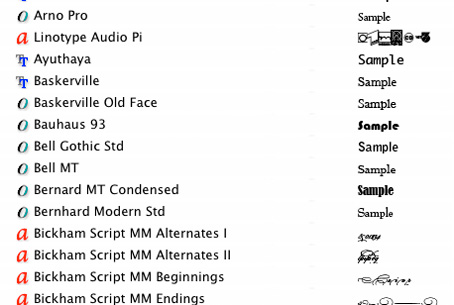
When you select a font in InDesign® from the font menu, check the icons to the left of the font’s name. The icon is there to let you know the type format. The O indicates OpenType fonts, the TT is for TrueType fonts and the red a is for PostScript fonts. Get to know the advantages of each format.
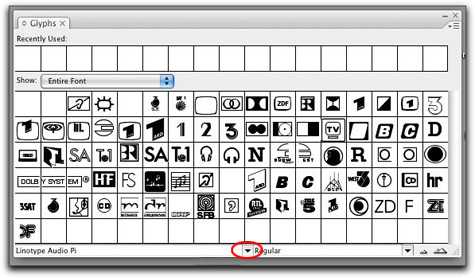 Once you explore all of the characters in your favorite type face or font, you may want to see what else is hidden in the keyboard map for the font. For example, how many times have you wondered were the © symbol is located, or where the ® symbol for registered product names? Better yet, you may have the need to check out the full keyboard map for a glyph or symbol font like Zapf Dingbats or Carta. Glyph fonts like these are only a few of the available fonts to you in the lab. Alternative type characters or glyphs can be hard to find. Luckily inside of InDesign and Illustrator you can easily find a map of the keyboard layout. InDesign’s Glyph menu can be found by going to the top menu bar > find Window> scroll down to Type & Tables > then down to Glyphs. A window like the one above will appear. Select the font you want to see by clicking on the small arrow that is circled in red.
Copyright © 2004–2009. All rights reserved.
RSS Feed. This blog is proudly powered by Wordpress and uses Modern Clix, a theme by Rodrigo Galindez.